Download Medeek Electrical Plugin for SketchUp
Concept about the Medeek Electrical (1.0.6) Extension for the SketchUp Software
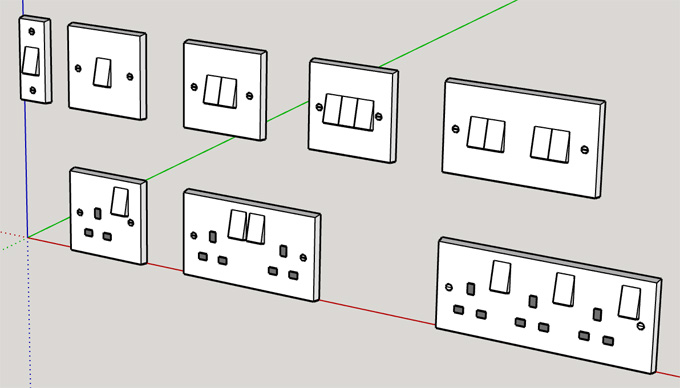
The Medeek Electrical (1.0.6) extension of the SketchUp software helps to provide a simple design interface for creating more accurate 2D and 3D electrical geometry within the SketchUp software. The Medeek Electrical (1.0.6) extension helps to utilise the SketchUp Ruby API programming interface.
The Medeek Electrical (1.0.6) extension is compatible with the different versions of the SketchUp software, which are SketchUp 2021, SketchUp 2022, SketchUp 2023, SketchUp 2024 and SketchUp 2025. The Medeek Electrical (1.0.6) extension is supported by both Windows and Mac operating systems. The supporting language for the Medeek Electrical (1.0.6) extension is English.
What are the menu items of the Medeek Electrical (1.0.6) extension?
The Medeek Electrical (1.0.6) extension has eleven menu items, which are as follows:
1. Draw Switches
2. Draw Outlets
3. Draw Light Fixtures
4. Draw Low Voltage Outlet
5. Draw Load Center
6. Draw Service Entrance
7. Edit Electrical Component
8. Delete Electrical Component
9. Regen Electrical Component
10. Estimating
11. Change Global Settings
The secondary menu items of the Medeek Electrical (1.0.6) extension are:
1. Draw Safety Devices
2. Draw Heaters
3. Draw Vents
4. Draw Floor/Ceiling Outlets
5. Draw Low Voltage Panel
6. Draw Misc. Fixtures
7. Draw Wires
8. Draw Legend
Discuss the design features of the Medeek Electrical (1.0.6) Extension for the SketchUp Software
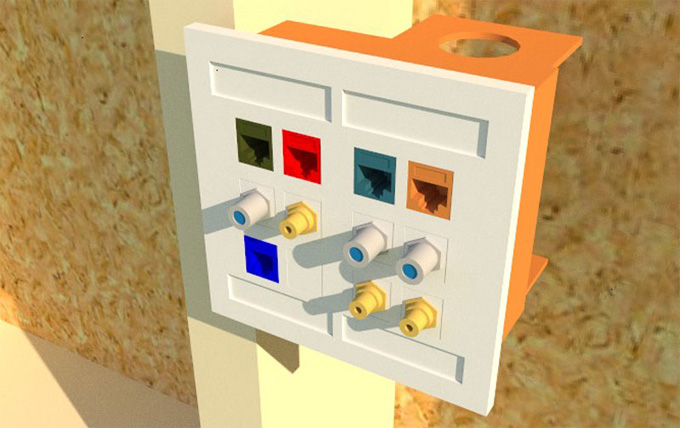
The Medeek Electrical (1.0.6) extension offers several typical electrical design parameters, which can be modified by the users to define the electrical geometry during the Switch creation process. The electrical geometry has been embedded within an existing wall panel that has been created with the help of the Medeek Electrical (1.0.6) extension. The Medeek Electrical (1.0.6) extension can be used with any kind of wall, roof, floor or ceiling geometry.
The advanced electrical features of the Medeek Electrical (1.0.6) extension allow users to rotate certain electrical elements, for example, switches, outlets or load centres. The default parameters of the Medeek Electrical (1.0.6) extension have been specified with the global settings. Thus, with the help of the Medeek Electrical (1.0.6) extension, the user can accurately depict typical residential electrical work. The electrical design parameters are as follows:
1. The switch style feature of the Medeek Electrical (1.0.6) plugin enables users to select between standard or Decora-type switches.
2. The switch height feature of the or Decora type of switches, Medeek Electrical (1.0.6) plugin, helps to find the vertical distance between the centre of the switch and the floor.
3. The switch material feature of the Medeek Electrical (1.0.6) extension enables users to assign a custom material to the switch body.
4. The Faceplate Material feature helps to assign a custom material to the switch wall plate.
5. The advanced switch options of the Medeek Electrical (1.0.6) extension help to add advanced switch options and parameters.
6. The Gang Number feature of the Medeek Electrical (1.0.6) extension helps to assess the number of switches ganged together in the electrical box.
7. The Orientation feature of the Medeek Electrical (1.0.6) extension enables the vertical or horizontal mount.
Learn about the installation process of the Medeek Electrical (1.0.6) plugin for the SketchUp Software
To install the Medeek Electrical (1.0.6) plugin for the SketchUp software, the users have to follow several steps, which are as follows:
To learn more, watch the following video tutorial.
Video Source: Medeek Design - Nathaniel Wilkerson
Download Medeek Electrical
1. At first, the user has to log in to the computer before installing any Ruby scripts. This process helps to make the installation process go more smoothly and also helps to ensure that the files get installed in the proper places.
2. Within the SketchUp software, the user has to select Window, then go to the Extension Manager in the case of the Microsoft Windows operating system or has to go to SketchUp and click on the Extension Manager in the case of Mac OS X. After this process, the Extension Manager dialog box is displayed.
3. In the next step, the user has to click on the Install Extension button, which helps to display the Open dialog box.
4. After that, the Ruby zip file needs to be located to install the .rbz file.
5. In the next step, the user has to click on the open button, which enables the installation of the extension and helps to display a security prompt.
6. After that, the Medeek Electrical extension has appeared in the list of available extensions in the SketchUp software.
7. After that, the user has to restart the SketchUp software to enable the license and serial number, and the user has to save the settings to the registry or .plist files on Mac.