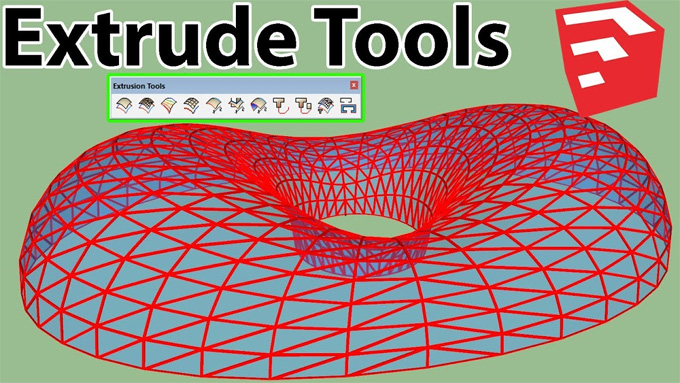
Modeling with Extrude Tools for SketchUp
Concept about the extrusion process
The extrusion process refers to the creation of a 3D shape by pulling or stretching a 2D shape that has been drawn previously. The designers require extrude tools to create anything from furniture models, houses, roofs or even highly detailed ornaments.
Discuss the basic extrusion process in the SketchUp software
The basic extrusion techniques in the SketchUp software are:
1. The user can create a simple 2D shape by choosing a rectangle, a circle, a triangle, or any other shape that takes their fancy.
2. The user can also navigate to the design toolbar on the left-hand side of the screen and also can select the Push/Pull tool.
3. In the next step, the user has to go back to the previously drawn shape and has to click on its face; after that, the cursor needs to be dragged either up or down. Thus, the shape can extrude along with the cursor in the direction that the user is pulling in.
4. While the user is satisfied with the height of the shape, they can release the cursor, thus creating a 3D design model of the shape. Thus, the total extrusion process from 2D shapes to 3D versions has been done.
Learn about the advanced extrusion techniques in the SketchUp software
Apart from the basic extrusion techniques, several advanced techniques have existed, which are:
Extrusion along a path
To extrude along a path, at first, the user has to think about the shape of the path that they want to follow, whether it is a curve, an angular line or multiple connecting lines. In the next step, the user has to create the 2D shape that they want to extrude. It needs to be ensured that the 2D shape has the same size as the path. After that, the user has to select both the shape and the path, right-click in the options box, select ‘Follow Me’, sit back and watch as the shape extrudes along with the path that they have created.
Create complex design shapes
The extrusion process enables users to create complex shapes to fit the desired outcome. To create complex shapes, the user has to draw a simple shape, for example, a rectangle or a triangle. After that, the user has to select the Push/Pull tool from the left-hand toolbar and use this tool to extrude the shape in different directions and thus can create organic curves and complex lines. In addition, the users are also able to move the tool to adjust different positions of the complex shape as per the design requirements.
Using plugins
There are several plugins which help to extrude shapes, which are:
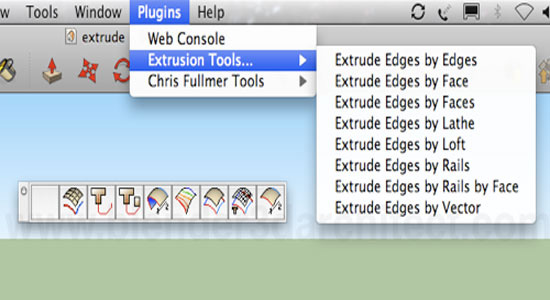
➢ Extrude tools: This plugin helps to extrude along a curve and can also extrude to a point. This SketchUp plugin can also add a variety of new design tools to the SketchUp toolbar.
➢ JointPushPull: This plugin can extrude multiple faces, which enables users to create complex shapes with ease.
➢ RoundCorner: This plugin enables users to create rounded corners and edges on their extruded shapes.
Understanding the design features of the extrude tools in the SketchUp software
Extruding edges by rails
The extrude tools of the SketchUp software enable the profile edge to follow one or two rails, which helps to form a 3D design object, variable cross-section shapes and supporting complex.
Extruding edges by loft
The extrude tool of the SketchUp software also helps to generate a design surface spanning between multiple selected curves, which allows the generation of complex, curved or wrapped surfaces.
Extruding edges by vector
The extrude tool can extrude a curve or edge in any kind of defined direction, which allows the angled or slanted extrusions.
Extruding edges by lathe
The extrude tool of the SketchUp software is able to rotate a profile edge around a central axis, which helps to form organic or circular, rounded shapes.
Object intersection feature
The extrude tool can also extrude a line, which can intersect other surfaces and thus can create trimmed and irregular shapes.
Extruding edges by rail to lattice
The extrude tools of the SketchUp software can also create complex 3D lattice structures, which are ideal for parametric designs or intricate structural components.
How to download the extrude tools in the SketchUp software
To download and install the extrude tools of the SketchUp software, at first, the user has to download the ExtrudeTools_v6.0.rbz file from the SketchUcation Plugin Store. In this context, the user has to visit sketchucation.com and has to register for a free account to access downloads.
In the next step, the user has to download the ExtrudeTools_v6.0.rbz file to the computer.
To learn more, watch the following video tutorial.
Video Source: Sketchup Style
Download Extrude Tools
After downloading the ExtrudeTools_v6.0.rbz file, the user has to open the SketchUp software, navigate to the Window and then go to the Extension Manager. After that, the user has to click the install extension button and select the downloaded .rbz file.