The best ways to add Materials to SketchUp's Library
Overview of the Material Library for the SketchUp Software
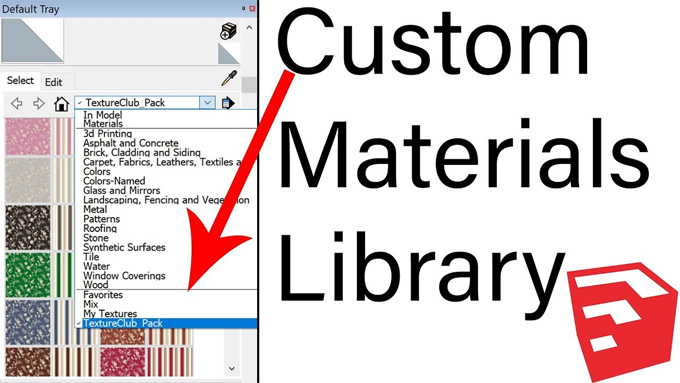
The SketchUp software has a material library, which helps to offer a wide range of default textures which can be accessed easily through the materials panel or the dropdown menu. The textures from the SketchUp material library help to cover a wide range of real-world materials, for example, concrete textures, stone textures, and others. The SketchUp material library helps to provide an extensive array of design options, which helps to cater to the varied design requirements.
The default textures of the SketchUp material library help to bring the design creation to life with a real-time feature. The design materials from the SketchUp material library are compatible with the V-Ray software and provide more realistic design renders.
Discuss the different types of materials and textures offered by the SketchUp Material Library
The SketchUp material library offers different types of materials and textures, in which the basic materials have been used for the standard surfaces, the procedural materials have been used for dynamic patterns, and the image-based materials have been used for realistic textures sourced from image files.
Basic types of material and textures
This type of material helps to provide foundational options for colouring the design surfaces and helps to create simple designs. The basic materials are ideal for beginners by offering a user-friendly design approach. These basic materials also help to improve the visual appeal of the SketchUp design project. With the help of the basic materials, the users are able to transform their 3D design models into realistic representations.
Procedural material and textures
The procedural materials help to provide dynamic and customisable design options, which help to generate complex design patterns and design effects. With the help of the procedural materials, the design professionals can create unique design textures, which evolve on the basis of the predefined rules and algorithm. The customisable feature of the procedural materials allows the designers to fine-tune each and every detail in the design, thus ensuring that the textures will align accurately with the vision of those designs.
Image-based materials and textures
The image-based materials of the SketchUp software rely on the imported images, which help to create realistic surface appearances. These image-based materials also offer a high level of detail and accuracy in the design, thus helping to achieve real-time finishes in architectural visualisations and interior designs.
How can users create their own materials by using the SketchUp Material Library?
A variety of useful design materials has been offered by the materials library of the SketchUp software, which helps to meet the design intent of the users. The users are also able to create their own design materials by using the 2D image files as a starting point within the SketchUp software. In this context, the user has to follow several steps, which are as follows:
Steps in creating design materials from files or colour codes in the Windows operating system
1. While creating a new material from their own file or colour codes, the user has to open the materials panel. The user has to go to the select tab and has to click on the ‘create new material’ option, which will open the Create Material dialog box.
2. In the next step, the user has to type a name for the new material in the text field.
3. After that, the user has to use the colour wheel to select a colour.
4. In the case of using an image add, the user has to select the ‘Use Texture Image’.
5. The File Explorer window has appeared, in which the user has to locate and select an image file.
6. After that, the texture size and the opacity need to be adjusted by the users. If the user has corresponding texture maps for their image texture, the user is able to adjust and add those textures.
7. After that, the user has to click on the ok button, thus the new material will appear in the In Model collection.
Steps in creating new design material from an image in the Mac operating system
1. In this case, the user has to open the colours panel and has to click on the ‘Textures Palette tab’.
2. After that, the user has to use the dropdown button and select the collection in which the use want the new material to appear.
3. In the next step, the user has to click on the context menu and has to select the ‘New Material’.
To learn more, watch the following video tutorial.
Video Source: TheSketchUpEssentials
Download Material Library
4. The Finder window has appeared, from which the user has to select an image file for their texture.
5. In the next step, the user has to type a name for the new texture. In addition, the user can also set the width and height of those textures and has to click on the ok button. After that, the new material will appear in the selected collection within the SketchUp software.