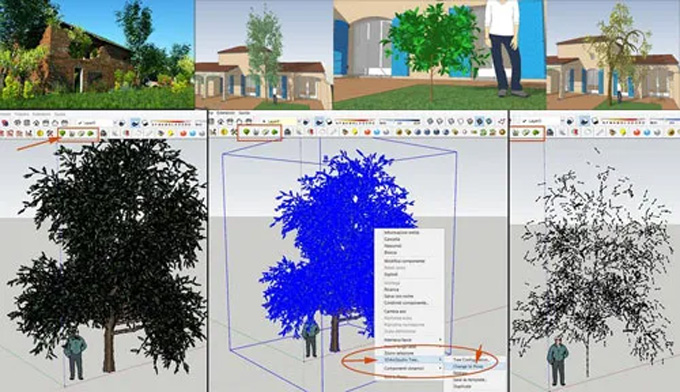
How to use 3D Tree Maker Plugin for SketchUp
Concept about the 3D Tree Maker Plugin for the SketchUp Software
The 3D Tree Maker plugin is one of the useful SketchUp plugins that can create 3D designs of trees and plants. The 3D Tree Maker plugin is one of the easy design tools which allows users to add trees into the design model in a few clicks. With the help of the 3D Tree Maker plugin, users are also able to change the existing tree templates and create their own trees with control over many tree configuration parameters.
The 3DArcStudio is the creator of this SketchUp plugin. The 3D Tree Maker plugin is compatible with the different versions of the SketchUp software, including SketchUp 8, SketchUp 2013, SketchUp 2014, and SketchUp 2015. The 3D Tree Maker plugin is compatible with both Mac and Windows operating systems.
The supporting languages for the 3D Tree Maker plugin are Simplified Chinese, Brazilian Portuguese, Traditional Chinese, French, English, and Spanish.
Discuss the design features of the 3D Tree Maker plugin for the SketchUp software
❖ With the help of the 3D Tree Maker plugin, the users are able to set the type of plant from the file/new menu at the top. The 3D Tree Maker plugin offers different tree types, including standard, conifer, broad crown, palm, and complex.
❖ The trunk setting feature helps to change the design parameters.
❖ With the help of the 3D Tree Maker plugin, users are also able to add an image to be used as flowers or fruits.
❖ The users can also select new leaves, trunks or parts of the tree by clicking on the image. In addition, users can also add their own leaves and bark to the plant image folder, and they can also use those image folders for their custom trees.
❖ By clicking on the ‘start’ on the RayTrace drop-down menu of the 3D Tree Maker plugin, the user is able to see a sample rendering of the tree with foliage.
❖ To create a tree image by using the 3D Tree Maker plugin, the user has to follow several steps. At first, the user has to enter the name of the component, then they have to enter the resolution for the image, enter the shadow mask options, use the advanced settings (in case of using other settings), and then they have to click on the start button to render the tree. By clicking the remake image, the user is allowed to change the resolution of the image, changing the rotation and generate a new image. After completing the design process, the user has to click on the “save tree image” option.
❖ The 3D Tree Maker plugin offers numerous advanced setting options, which are as follows:
➢ The tree rotation option enables the user to rotate the tree in the image.
➢ The camera height option enables the user to raise or lower the camera to get different effects.
➢ The HDRi sky rotation option will impact how the HDRi sky illuminates the tree.
➢ The Use Defaults option helps to reset the default settings.
➢ The Illumination factor helps to alter the image if the tree is too light or too dark.
➢ The Make Criss-Cross images option helps to place the trees at a 90-degree angle.
➢ With the help of the top-view height option, the top-view image of the trees will be placed above the ground.
❖ In the case of the alpha transparent image, which is not displaying well in the SketchUp software, users are able to adjust the image quality of the Alpha image display.
Learn about the key importance of the 3D Tree Maker plugin
Provide high-quality customisation
The 3D Tree Maker plugin helps to provide extensive and parametric control over branches, leaves, trunks and flowers, which helps to suit specific project aesthetics.
Improve workflow efficiency
The 3D Tree Maker plugin enables the easy insertion of the trees, managing the library assets and also redrawing of proxies into the detailed trees.
Adding variety in the design
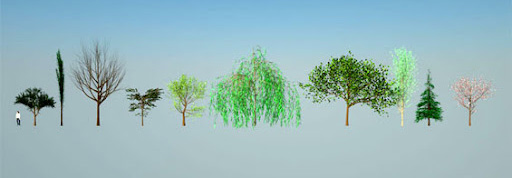
The 3D Tree Maker plugin helps to provide a wide selection of tree species and templates.
Performance optimisation
The 3D Tree Maker plugin offers a “proxy” function, which helps to convert heavy and detailed trees into low-poly representations. This feature helps to keep the design model fast and helps to prevent lag while dealing with many trees.
Generating instant vegetation and grass
The 3D Tree Maker plugin helps to generate grass and plants on terrain rapidly, which helps to save the overall modelling time.
How to download and install the 3D Tree Maker plugin for the SketchUp software?
To download the 3D Tree Maker plugin for the SketchUp software, at first, the user has to download the .rbz file from the SketchUcation site or SketchUp Extension Warehouse.
After downloading the .rbz file, the user has to open the SketchUp software, they have to navigate to Window, go to Preferences and click on the Install Extension button.
To learn more, watch the following video tutorial.
Video Source: MysterioTV
Download 3D Tree Maker
In the next step, the user has to select the .rbz file that has been downloaded previously. After that, the toolbar should appear under the Extensions or Views options.